Kanban and automation
The Kanban
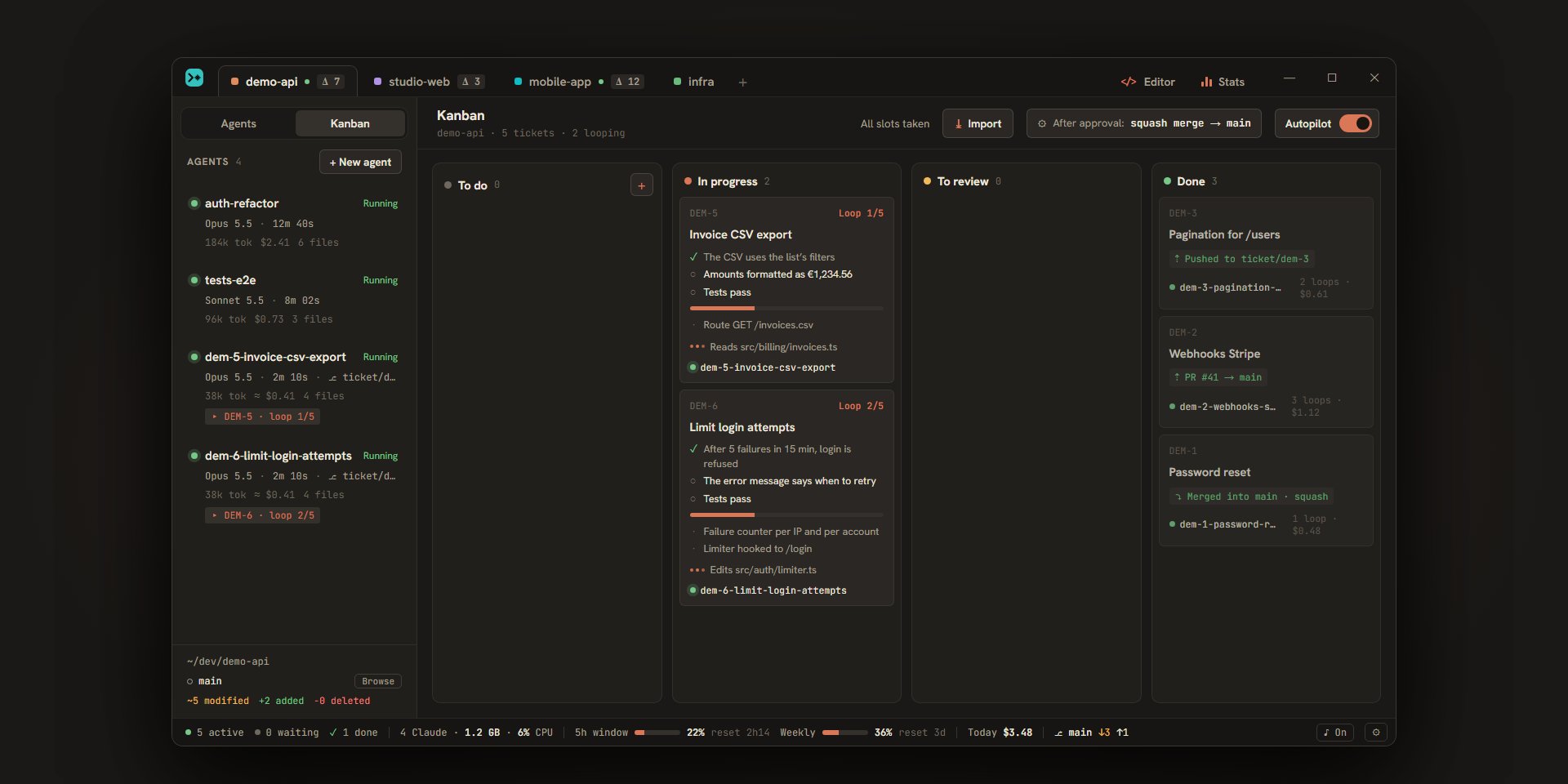
A project’s Kanban sorts its tickets into four columns. You write a ticket with its acceptance criteria, an agent picks it up and works until it meets them, then hands it back to you to review. This page describes the board, the tickets, and their cards.
Opening the Kanban
Every project has its own Kanban. At the top of the sidebar, the project’s switcher offers “Agents” and “Kanban”. Click “Kanban”: the board takes the place of the conversation. Click “Agents” to go back to the list of agents. A badge on “Kanban” counts the project’s tickets in “To review”.
Clicking a ticket notification (“ready to review” or “blocked”) also opens the project’s Kanban.
The board header
| Element | What it says or does |
|---|---|
| “Kanban” and the line below | The project’s name, the number of tickets, and how many are “In progress” (“demo-api · 5 tickets · 2 looping”). |
| The slots | “1 free slot” or “All slots are taken”, or why nothing starts: “Quota reached — resumes at 2:30 PM”, “Claude Code not found — no tickets will start”, a target branch with no commit or not found. |
| “Import” | Opens the window that imports tickets from Jira, Trello, GitHub Issues, or Linear (see Jira, Trello, GitHub, and Linear). |
| “After approval: …” | Sums up what “Approve” does (“merge squash → main”, “PR → main”, “push ticket/*”, “leave as is”). A click opens Settings › Kanban (see Kanban settings). |
| “Autopilot” | The switch of this project’s autopilot. |
When the autopilot is paused, a line under the header says why and offers “Resume now”.
The columns
| Column | What it holds | Order |
|---|---|---|
| “To do” | The tickets waiting for an agent. | By priority, from top to bottom, then by age. |
| “In progress” | The tickets an agent is working on (“Loop 2/5”), and those that are blocked. | By start time. |
| “To review” | The tickets the agent hands back: criteria met, or the maximum number of loops reached. It is up to you to test them, then approve or send them back. | By arrival time. |
| “Done” | The approved tickets. | Newest first. |
Each column shows its number of tickets. An empty column says what it is waiting for (“Add a ticket: an agent will pick it up as soon as a slot is free”, “Nothing to review”). Only the “To do” column has a + button (“New ticket”).
Cards are not moved by hand: a ticket changes column depending on what its agent does and what you decide (see the autopilot and Reviewing and approving a ticket).
Creating a ticket
- In the “To do” column, click
+(“New ticket”). A large “New ticket” window opens, made for writing long texts. - Fill in the fields. Only the title is required.
- Press
Ctrl+Enter(the “Add” button does the same). The ticket lands at the end of “To do”.
On macOS, Ctrl becomes ⌘.
| Field | What it is for |
|---|---|
| “Ticket title” | What the ticket does, in one line. “Add” stays disabled while the title is empty. |
| “Description” | The context, which the agent reads with the title. Optional. |
| “Acceptance criteria” | One criterion per line. The agent checks each one, and the ticket is only done when they are met. With none, Escouade adds two: “Implementation matches the ticket” and “Tests pass” (in the interface language at the time of creation). |
| “Max loops” | The most loops the agent may run: 3, 5 (the default), or 8. See the autopilot. |
| “Branch” | By default “New branch ticket/<key>”: the ticket gets its own branch, made when it starts. “Take up an existing branch…” opens the branch picker (local or remote branches): the agent then works on that branch, which Escouade never deletes, even once the ticket is approved. The Kanban’s target branch and the branch of the project’s folder cannot be picked. |
| “After” | The tickets that must be done before this one. The list shows the project’s other tickets that are not “Done”; “Search for a key” filters it, and the tickets you checked stay in view. It only appears when there are other tickets. |
A ticket cannot come after a ticket that already waits for it, directly or not: neither would ever start. The box unchecks itself and the window says which one (“DEM-3 already waits for DEM-5 (directly or indirectly).”).
In the window:
Ctrl+Enteradds (or saves) from any field.Enteralone does it from the title, and starts a new line in the other fields.Esc, the cross, a click outside, or “Cancel” close the window. If you typed something, Escouade asks “Discard your changes?”; “Cancel” takes you back to the form with what you had written.
Note
Every ticket gets a key, like DEM-5: the first three letters of the project’s name in capitals (TIC if it has none), then a number that is never reused. The first ticket also fixes the Kanban’s target branch: the branch the project is on at that moment. If the project is on a detached HEAD, the ticket is refused until you choose the target branch in Settings › Kanban.
Editing, prioritizing, and deleting a ticket
Editing
Click a “To do” card (or right-click › “Edit”): the “Edit DEM-5” window opens with the same fields. Ctrl+Enter or “Save” saves. Only a “To do” ticket can be edited: once it has started, a click on its card opens its agent.
Moving a ticket to the top
Right-click a “To do” card › “Move to top”. The order of the column is the order in which the autopilot takes tickets.
Deleting
Right-click a card › “Delete”.
| Column | What happens |
|---|---|
| “To do” | A confirmation, then the ticket and its description are gone. The tickets that were waiting for it no longer wait. For an imported ticket, the confirmation adds that it will no longer be imported from its service: automatic import does not bring it back (you can still import it again by hand). |
| “In progress” and “To review” | A confirmation, then the ticket is gone and its agent is archived. |
| “Done” | The ticket is gone right away, without a confirmation. |
Deleting a ticket from the Kanban does not delete it in Jira, Trello, GitHub, or Linear.
Archiving or deleting the agent of an “In progress” or “To review” ticket sends that ticket back to “To do”, from scratch (Escouade asks before archiving: “Its ticket DEM-5 goes back to “To do”.”).
What a card shows
Every card has its key, its title and, for an imported ticket, the badge of its service with its key there (a click opens it in the service). A ⚠ flags a sync that failed (see Jira, Trello, GitHub, and Linear).
| Column | The card shows |
|---|---|
| “To do” | The number of criteria and loops (“3 criteria · max 5 loops”), and when the ticket will start: “Picked up as soon as a slot is free”, “Waiting for a slot (2/2)”, “⏸ after DEM-3”, “Autopilot is off”, “Waiting: autopilot paused”… With the autopilot off, a “Start” button appears when a slot is free. |
| “In progress” | “Loop 2/5”; the criteria, checked (✓) or not (○), with the agent’s note on hover; a bar of the criteria met; the last three items of the progress (“+2” for the others); the status line the agent published through the MCP server; what it is doing (“Reading src/billing/invoices.ts”), “Setting up the worktree · …” during setup, “Question waiting for your answer”, or “Resumes at 2:30 PM” if it is waiting for its quota. At the bottom: the agent’s name with its status, and the ticket’s cost (preceded by “≈” while it is an estimate). |
| “To review” | “What was done” in full, the criteria, “Partial goal” if the maximum number of loops was reached without every criterion, the cost and “3/3 criteria”, then the buttons for testing and approving. |
| “Done” | What became of the ticket (“⤵ Merged into main · squash”, “⇡ PR #41 → main”, “⇡ Pushed to ticket/dem-3”, “◇ Left in the worktree”, “∅ No changes”), then “3 loops · $1.12”. A PR reopens with a click. |
A blocked ticket (“In progress” or “To review”) shows its reason in a frame: “Interrupted”, “Error: …”, “Criteria report missing”, a conflict… A blocked “In progress” ticket has a “Resume” button and no longer holds a slot. The card of an agent waiting for your answer has an amber outline.
Tip
“Notify me about › Tickets (ready to review, blocked)” in the settings decides whether a ticket that reaches “To review” or gets blocked notifies you (see Notifications).
The ticket’s agent and its conversation
When a ticket starts, Escouade creates an agent for it. It carries the ticket’s key and title (dem-5-export-csv-des-factures) and shows up in the list of agents with a “▸ DEM-5 · loop 1/5” tag, then “DEM-5 · to review”. It works in a worktree of its own.
- Click the card of an “In progress”, “To review”, or “Done” ticket (or give it focus and press
EnterorSpace) to open its agent’s conversation. Right-click › “Open agent” does the same. - It is the same conversation as the other agents’ (see Agents and Chat): you read what the agent does, answer its questions and permission requests, and write to it. A ticket’s agent stays in Escouade’s view; it has no button for the Claude Code view.
- The conversation’s header and the criteria report have a “▶ Test” button when the agent has what it takes to launch its work, like the “To review” card (see Reviewing and approving a ticket).
The criteria report
A ticket’s agent ends each of its answers with a report: which criteria are met, what it has done and, once it has prepared it, how to launch its work to test it. Escouade reads this report to move the ticket along, and the conversation shows it as a “Criteria report” card instead of the raw text:
- the count of criteria met (“2/3”) and, for each one, ✓ or ○ with the agent’s note;
- “What was done”: up to eight short items, which the ticket’s card picks up;
- “Test launch”: the “Setup” steps and the processes (name, command, address), with a “▶ Test” button when a test is possible.
If an answer comes without a report, the agent is prompted once. Without a report a second time, the ticket gets blocked (“Criteria report missing”) and you can “Resume” it.
Going further
- The autopilot: how tickets are picked up, looped on, and paused.
- Reviewing and approving a ticket: “▶ Test”, “Approve”, “Send back”.
- Jira, Trello, GitHub, and Linear: import tickets and keep their status up to date.
- The MCP server: create and start tickets from Claude.
- Kanban settings: every setting of the board.