Code and Git
Git: changes, diffs and commits
This page explains how to see what your agents changed, read a diff, commit, browse the repository’s history, and show the conversation and the files side by side.
The uncommitted files panel
The panel opens to the right of an agent’s conversation. In the classic layout, the “Files ▸” counter in the conversation’s header opens and closes it, as does Ctrl+Shift+B (⇧⌘B on macOS); the panel’s × closes it too. It has two tabs: “Uncommitted”, followed by the number of files, and “History”, described below.
Under the tabs, two buttons choose what the list shows:
| Button | What you see |
|---|---|
| “This agent” | The agent’s files. If it has a worktree, those of its worktree (“worktree .claude/worktrees/refacto-auth · isolated from the other agents”). Otherwise, the files it changed in the project folder, based on its edits. |
| “Whole project” | The files of the project folder and those of each agent’s worktree, each tagged with the name of the agent it belongs to. |
Each row gives the letter for the file’s state (M modified in amber, A added in green, D deleted in red), its name, its folder, then the number of lines added (+29) and deleted (−3). A new file that git doesn’t track yet counts as added. The list updates by itself while the agent works, and as soon as anything changes in the folder. It shows at most 500 rows, then “… and N more files”; the diff and the commit cover all the files.
When there is nothing, the list says “No files changed by this agent.” or “No uncommitted changes.”
What you can do with a file
- Clicking a row opens its diff (classic layout) or shows it under the list (side-by-side layout).
- The
</>button that appears at the right of the row when you hover it, or “Open in editor” in its menu (right-click), opens the file in the editor, in the agent’s worktree if it has one. For a deleted file, the button isn’t there and the menu entry is greyed out. - Right-clicking also lets you undo a file:
| Menu entry | For a file that is… | What happens |
|---|---|---|
| “Discard changes…” | modified | After confirmation, it goes back to its state at the last commit: its uncommitted changes are lost. |
| “Delete the file…” | added | After confirmation, it is deleted from your disk and can’t be recovered, because it was never committed. |
| “Restore the file” | deleted | It goes back to its state at the last commit, without confirmation. |
Warning
“Discard changes” and “Delete the file” don’t go through the trash: there is no way back.
The buttons at the bottom
- “Show diff” opens the viewer on all the files in the list (for “Whole project”, those of the project and of each worktree).
- “Commit…” (“This agent”) or “Commit all…” (“Whole project”) starts a commit. The buttons are greyed out when the list is empty.
- For an agent that has a worktree, “Merge escouade/refacto-auth → main…” merges its work into its base branch, and “Integrate main” brings the base into it: see one worktree per agent and branches.
The diff viewer
The viewer is a large window. It opens with “Show diff”, by clicking a file in the list (classic layout), by clicking a commit in the history, or by comparing branches. Its title says what it shows (“Changes in refacto-auth”, “4f2a9c1 · feat: pagination”, “main ↔ feat/login”) along with the number of files. With several files, the list is on the left, with each file’s state, its path, the agent it belongs to and its +/− lines; the diff of the chosen file is on the right. Esc or the × closes it.
Two presentations, chosen with the “Unified” and “Side by side” buttons:
- “Unified”: a single column, with the old and new line numbers and a
+or−sign in front of each changed line; - “Side by side”: the old version on the left, the new one on the right, paired lines facing each other. Long lines wrap so that the two columns stay aligned.
The choice is kept from one session to the next. It applies everywhere: the viewer, the diff of the chosen file in the panel, and the diffs the conversation shows under the agent’s edit tool calls.
A few special cases:
| What the viewer says | Why |
|---|---|
| “No differences.” | The file went back to its original state. |
| “Binary file.” | The file is binary: there is no diff to read. |
| “This diff is too large to display.” | This file’s diff is over about 4 MB. |
| “Large diff (N lines)” and the “Show” button | The diff has more than 1,500 lines. It stays folded until you ask for it. |
An unfolded diff appears in slices of 500 lines: the “Show 500 more lines” button adds the next one.
Committing
The “Commit…” and “Commit all…” buttons of the panel follow the project’s “Commit” setting (Settings › Projects, “Git” group). It has two values: “Written by the agent”, the default, and “Direct, with a suggested message”. The full list of project settings is in the project settings.
Asking the agent to commit
This is the default behavior. “Commit…” sends the agent a message: it must commit the changes it made in the repository, with a clear message in Conventional Commits format, include only the files it changed, and make several commits if there are several distinct topics. A “Commit request sent to refacto-auth” message confirms it, and the rest happens in the conversation, as with any message: the agent may ask for permissions, for example to run git.
“Commit all…” asks the selected agent to commit all the repository’s current changes, grouped into coherent commits. An agent must therefore be selected.
The message is sent in the language set by “Language of texts written by Claude” (see the application settings).
Committing yourself, with a suggested message
With “Direct, with a suggested message”, “Commit…” opens the “Commit” window. It says what is being committed (“Changes in refacto-auth”), lists the files in the commit and offers the “Message” field.
- Haiku reads the list of files and their diff, along with the repository’s latest commit subjects, and suggests a message in the same style (“Haiku is writing the message…”). It can take a few seconds, 90 at most.
- Read the message and edit it as you like. If you start typing before the suggestion arrives, it doesn’t replace your text. “Regenerate” asks for another one, which replaces the contents of the field.
- “Commit” creates the commit, closes the window and shows “Commit 4f2a9c1 created”.
What to know:
- Nothing is committed unless you click “Commit”.
- The commit takes exactly the files in the list, new, modified and deleted, and nothing else: anything that was already staged elsewhere stays staged, out of the commit. The list has no checkboxes: the commit takes all the listed files.
- Git hooks run. If one refuses the commit, its message appears in the window, with your text intact.
- If Haiku suggests nothing, the window says “No suggestion: …” and you write the message.
- “This agent” commits the agent’s worktree, or the files it changed in the project folder. “Whole project” commits the project folder alone: an agent’s worktree is committed from “This agent”.
- The files the project copies into its worktrees (
.env*by default) are never committed. The window says so (“Never committed: .env (copied into the worktrees).”) and their contents are not shown to Haiku. - By default, the suggested message follows the language of the repository’s latest commits. If you set “Language of texts written by Claude”, that language is requested.
- Closing the window with a message you wrote or edited asks for confirmation (“Discard the message?”).
History and the git graph
The “History” tab draws the graph of the whole repository: the latest 300 commits of all branches, local and remote, and the tags, with lines showing where each branch starts and where it is merged. Each row gives the commit, its labels, its subject and its age; hovering a commit shows its short hash and its author.
- The agent’s branch is highlighted: its commits are in full color, with a bigger dot, and the rest is dimmed. When first displayed, the list scrolls to it. Without an agent that has a worktree, the branch of the project folder is highlighted.
- The labels tell apart the current branch (in the accent color), agents’ branches (shown under the agent’s name), remote branches (outlined) and tags.
- Clicking a commit opens its diff in the viewer. For a merge commit, the diff is against the first parent.
- Right-clicking (or the Menu key, or
Shift+F10) opens the commit’s menu.
| Menu entry | Effect |
|---|---|
| “Create a branch here…” | Opens “New branch”, starting at this commit. |
| “Switch to feat/login” | Switches the project folder to this local branch. One entry per local branch that points at the commit, except the project folder’s. |
| “Compare with the current branch” (“Compare with HEAD” on a detached HEAD) | Opens the viewer with what changes between the current branch and this commit, titled “main ↔ feat/login”. The entry is absent on the commit the project folder is on. |
| “Delete branch…” | Deletes a local branch that points at the commit (not the project folder’s), after confirmation. With several branches on the commit, the entry names the one it deletes. |
A branch held by an agent’s worktree can neither be switched to nor deleted: the entry is greyed out and says why. The questions these actions ask (uncommitted changes, a branch not merged yet) are described in branches.
Side by side: conversation and files
Ctrl+Shift+L (⇧⌘L on macOS), or the “Conversation and files side by side” button at the right of the conversation’s header, changes the layout. The button next to it, “Classic layout”, goes back. The choice is kept from one restart to the next.
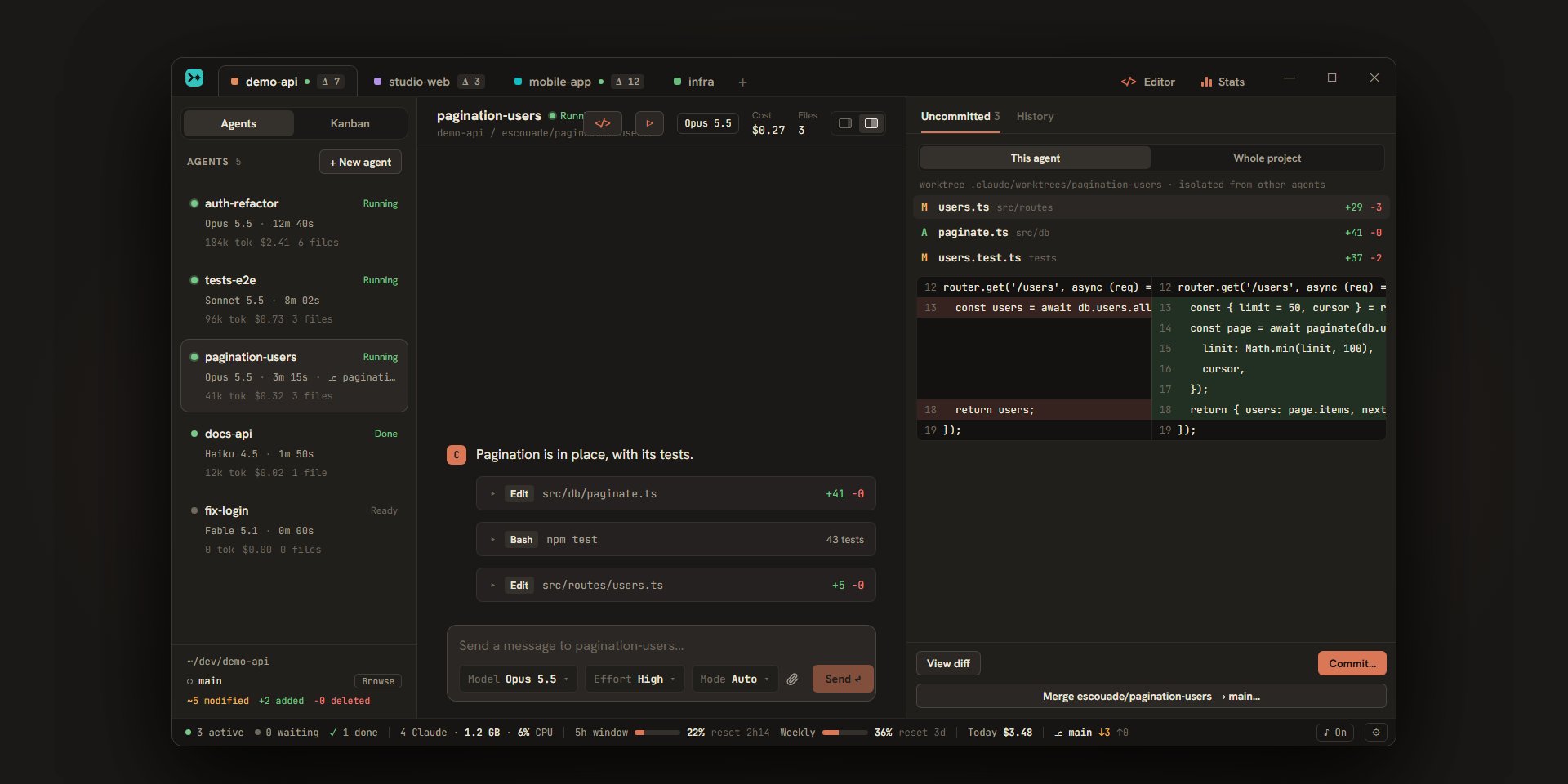
In this layout, the conversation takes the left half and the panel, always shown, the right half. The list of files is at the top (about a third of the height at most), and the diff of the chosen file is below it, across the whole available width. Clicking a row changes the file; the first one is chosen at the start, and the chosen file stays displayed when the list changes. List and diff refresh while the agent works: you read its changes as they come.
Since the panel is always there, Ctrl+Shift+B no longer has any effect and “Files” becomes a plain counter in the header. The “Uncommitted” and “History” tabs, the buttons at the bottom and the viewer (“Show diff”) are the same.
Project changes at a glance
- Each project’s tab shows “Δ 7” when the project has uncommitted files (the tooltip says “Uncommitted git changes”). The number counts the files modified, added or deleted in the project folder and in its agents’ worktrees. It disappears at zero.
- In the sidebar, each agent card shows its number of files (“6 files”), and the foot of the sidebar details the project’s totals (“~2 modified”, “+1 added”, “−0 deleted”).
- The branch of the project folder, with how far ahead of or behind the remote it is, is in the status bar: it is the button that opens the branch picker.