Code and Git
Running the project
Launch commands start the processes you need to develop a project (server, API, database, worker…), each in its own read-only terminal. This page explains how to define them, run them, follow their state and let Claude suggest them.
What it’s for
A launch command is a command line you often rerun while developing: the front-end server, the API, a local database, a worker. It is stored with the project. It runs in its own terminal, whose log stays from one run to the next, and you run, stop or restart it in a click, alone or with the others.
It isn’t an ordinary terminal: the log is read-only, and Escouade follows the process to say whether it is running, has stopped or has crashed.
Defining the commands
Commands are set per project, in Settings › Projects, “Launch” group. The quickest way is the gear button of the sidebar’s “Launch” section (“Launch commands…”), or “Configure” when there is no command yet: they open the project’s settings on that group. Each command has four fields:
| Field | Role |
|---|---|
| “Name” | The name in the list and in the log’s header (for example “Front”). It is required. |
| “Shell” | The shell that runs the command, among those the app detects. A command set to a shell this machine doesn’t have (copied from another system, for example) runs in the first detected shell, and the list marks it “bash (not found)”. |
| “Command” | The command line (for example npm run dev). It is required. |
| “Subfolder” | The folder it runs in, relative to the project folder (for example apps/web). Blank, it is the project folder. It must exist: otherwise the command doesn’t start and the log says “The folder “apps/web” doesn’t exist in the project”. |
“+ Add a command” adds one, and the command’s cross deletes it. Nothing takes effect before “Save”, which stays greyed out as long as a command has no name or no command line (“Every launch command in “demo-api” needs a name and a command line.”). A command removed from the settings and saved stops, and its log disappears. The full list of project settings is in the project settings.
Commands receive no ESCOUADE_… variable. To give an environment variable to a process that doesn’t read it from a .env file, write it in front of the command, in the syntax of its shell: $env:PORT = '3000'; npm run dev in PowerShell, PORT=3000 npm run dev in bash and zsh. When “Also apply the proxy to the built-in terminals” is on (see the network settings), commands receive the proxy variables.
Running, restarting, stopping
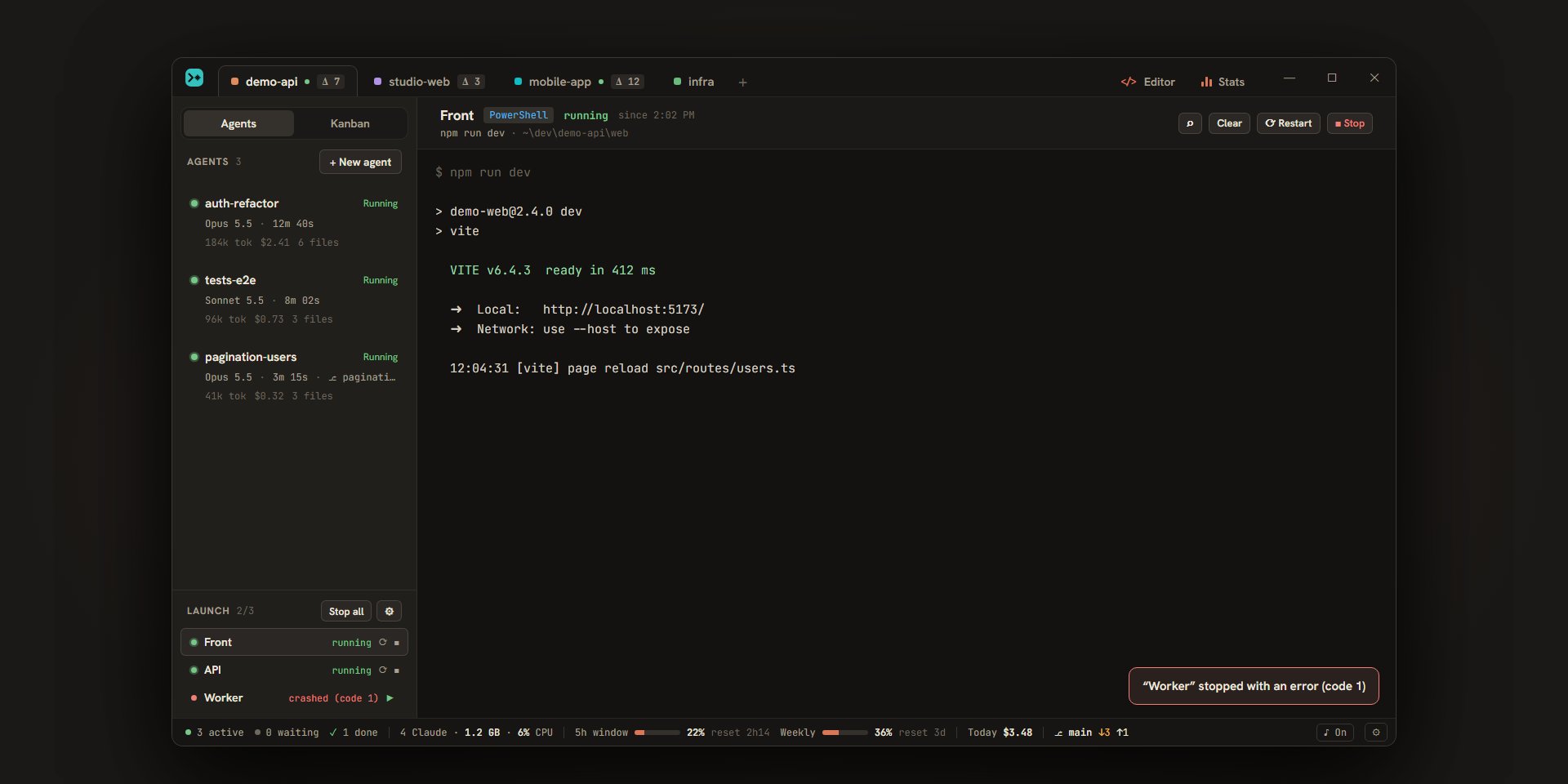
The sidebar’s “Launch” section lists the project’s commands. Next to its title, it shows how many are running (2/3). Each row gives a colored dot, the command’s name, its state and its buttons; the row’s tooltip shows the command line. Clicking the row displays the command’s log in the main area.
| State | What it means |
|---|---|
| “ready” | The command hasn’t been run yet since Escouade started. |
| “running” | The process is running. |
| “stopping…” | You asked it to stop, and it hasn’t finished yet. |
| “stopped” | You stopped it. |
| “done” | It ended by itself, with code 0. |
| “crashed (code 2)” | It ended with an error. A message shows in the window too: ““Worker” stopped with an error (code 2)”. Escouade doesn’t send a system notification for it. Without an exit code, the state is “crashed”. |
The row’s buttons:
- “Run” (▶) starts the command. The next two replace it as long as it runs.
- “Restart” (⟳) stops it, then starts it again. Escouade waits up to 10 seconds for the process to stop; if it is still running, the command stays as it is.
- “Stop” (■) stops the command and the processes it started. Until the stop is done, the row says “stopping…”.
At the top of the section, “Run all” starts all the commands at the same time. As soon as one is running, the button becomes “Stop all”.
When a command doesn’t start, a message says so (““Front” couldn’t start: …”) and the log writes the reason in red. Closing the project stops its commands without counting them as crashed.
A command’s log
A command’s log fills the main area when you click its row. The header gives its name, its shell, its state (“running”, “since 14:02”), the command line and the folder it runs in. On the right: the magnifier, “Clear” and the action buttons, which follow the state: “Restart” and “Stop” while it runs, “Restart” once it has finished, “Run” when it has never run (the log then says “Not run yet.”).
- The log starts with the command line (
$ npm run dev). The program then writes whatever it wants, colors included. It keeps 10,000 lines. - The log is read-only: you scroll it (mouse wheel,
Shift+PageUp) and search in it, but keys don’t go to the process. The process follows the window’s size. As in a terminal, anhttp://orhttps://address in the log opens in the browser with a plain click. - It stays from one run to the next: a restart adds “— restarted at 14:32 —” after it. It disappears when the command is removed from the settings or when the project is closed.
- The magnifier, or
Ctrl+Shift+F(⇧⌘Fon macOS) in the log, opens a search field:Entergoes to the next match,Shift+Enterto the previous one,Esccloses the field. “Clear” empties the log’s screen.
Agents’ test launches (the “▶ Test” button, see testing) appear in the same section, under the agent’s name, once launched. They are followed the same way.
Fill in automatically
Rather than writing the commands, you can ask Claude to suggest them.
- In the “Launch” section of a project with no command, click “✦ Suggest commands”: the settings open on the “Launch” group and the reading starts. You can also click “✦ Fill in automatically” in that group, in the project’s settings.
- The button says “Claude is reading the project…”. Claude reads the manifests and scripts (
package.json,Makefile,Procfile,justfile,pyproject.toml…), thedocker-composefiles, the README and the CONTRIBUTING, at the root and in the subfolders. It only has reading tools: it changes nothing and runs nothing. It has 4 minutes at most. - A message says how many commands are suggested (“3 commands suggested: review them before saving.”), and a “Suggested launch commands” box shows them, each with its name, its command line in full, its shell and its folder (“the project folder” when blank).
- “Replace the commands” puts the suggestion in place of the draft’s list, and “Ignore” drops it. Nothing is kept until you click “Save”.
Warning
These commands will run in your shell, with your rights. Read each one in full before saving: “Replace the commands” replaces all the ones in the list.
What Claude is asked to suggest: the processes needed to develop the project (development servers, watchers, workers and job queues, database and local services), one per command, with a short name. No install or test commands, nor commands that end by themselves (build, lint, migration). A command that returns at once (docker compose up -d) can’t be followed in a terminal: it must be given in the foreground (docker compose up db). Eight commands at most. All of them run in the first detected shell.
What gets left out
A suggested command is left out, and counted in the message, when it spans several lines, contains a character that shows nothing or changes the reading order (a zero-width space, a direction mark…), contains a run of 24 spaces or more, or is longer than 300 characters. The reason: the settings show a command on a single line, and what you read in the field must be what runs. The message then says, for example, “2 commands suggested, 1 left out (invisible characters or too long): review them before saving.” A longer sequence goes in a script of the project, which the command calls.
Other commands are dropped without being counted: those with no command line, those whose subfolder isn’t in the project, and those beyond eight. A name longer than 40 characters is shortened.
If Claude finds nothing to run, the message says “Claude found no command to run for this project.” If all its commands are left out, the error says “Claude proposed unreadable commands: none was kept.”