Agents and chat
The conversation
The conversation is where you talk to an agent and read what it does. This page describes the message field, attachments, autocompletion, how messages and tool calls are displayed, questions and permissions, and long conversations.
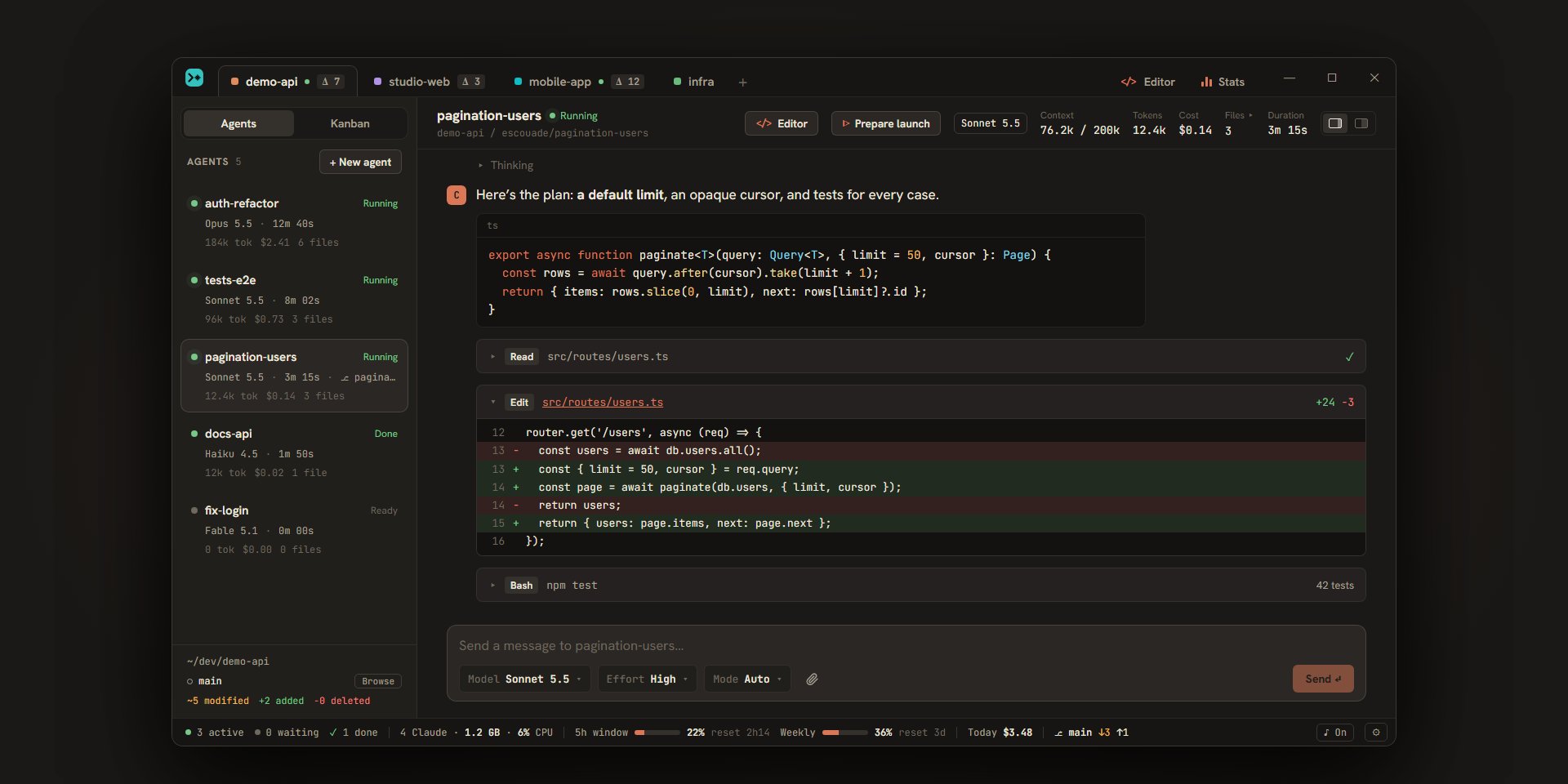
On macOS, Ctrl becomes ⌘ for shortcuts.
The header
The conversation header shows the agent’s name (a double-click renames it), its status, then project / branch below. On the right:
- “Editor” opens the editor on the agent’s files;
- “Test” or “Prepare launch”, depending on the agent, launches its worktree or asks the agent how to launch it (see testing);
- “Claude Code view” runs the agent in Claude Code’s own interface (see the Claude Code view). The button doesn’t exist for a ticket agent or an archived agent;
- the model, then the agent’s figures: “Context” (for example “76.2k / 200k”: how much of the model’s window is already filled, with the percentage in the tooltip; the value takes on a warning color from 80%), “Tokens”, “Cost” (preceded by “≈” during a turn: it’s an estimate), “Files” (in the classic layout, a click shows the uncommitted files, see git), and “Duration”;
- two layout buttons: classic, or the conversation and the files side by side (
Ctrl+Shift+L, see the interface).
Writing a message
Sending
Enter sends the message, Shift+Enter starts a new line. The field grows with the text, up to 40% of the window’s height. An empty message with no attached file isn’t sent. The “Send” button does the same.
While the conversation is empty, the field says “Describe the task to give to Claude…”; after that, “Send a message to” followed by the agent’s name.
While Claude works
You can write to Claude while it works. The message appears in the conversation with the note “sent during the turn”: Claude takes it into account at its next step, as in Claude Code. Writing to an agent also cancels its auto-resume after the usage limit.
To stop it, press Esc in the message field, or click “Stop” next to “Send”. The turn ends with “Interrupted”, the agent goes to “Done”, and no notification is sent. When a suggestions list is open, Esc closes it first.
Answering with the field
When Claude is waiting for an answer to a question or a permission, the field’s text changes and what you write answers it:
- for a question, “Answer the question or write a free answer…”: your text is the answer;
- for a permission, “Tell Claude what to do instead (this denies the request)…”: your text denies the request and tells Claude what to do instead.
Attachments
There are three ways to attach a file: paste it (Ctrl+V, for example a copied screenshot), drag it onto the field, or click the paperclip (“Attach a file”). A thumbnail or a file name appears above the field; the cross removes it.
| Type | Formats | Maximum size |
|---|---|---|
| Image | PNG, JPEG, GIF, WebP | 5 MB |
.pdf |
18 MB | |
| Text | Code, configuration, logs, CSV, Markdown, JSON… and files with no known extension such as Dockerfile or .env.local |
256 KB |
The files of one message don’t exceed 18 MB in all. A rejected file (unknown format, too big, binary) is named in a red message, and the others are attached anyway. In the conversation, the message shows “2 images” and the names of the files.
Attached files don’t go with an answer to a question or a permission: they stay ready for your next message. In the Claude Code view, Escouade’s message field isn’t shown: paste the file into the terminal.
Mentioning a file with @
Type @ at the start of a message or after a space, then part of the name: Escouade lists up to 12 files from the agent’s folder (its worktree if it has one), with their folder. ↑ and ↓ choose, Enter or Tab (or a click) insert @path/to/file, Esc closes the list. The search is approximate: a few letters of the name are enough. It covers the files git knows (tracked, or untracked but not ignored); outside a git repository, the folder is walked without dependency and build folders.
Running a command with /
At the very start of a message, / opens the list of commands that Claude Code announces for this agent. Those whose name starts with what you type come first, then those that contain it; the list shows 12 at most, and each line gives the argument hint and the description. The keys are the same as for @, and Enter inserts /command followed by a space. If the agent’s process is stopped, it is restarted to get the list.
Recalling the last message
↑ in an empty field puts your last message back: you can send it again as is or edit it. The original stays in the conversation.
Drafts
What you write is kept separately for each agent: switching to another agent and coming back finds your text. The text also survives a restart, an update, or a reload of the window (it is saved a moment after your last keystroke). Attachments stay in memory: they disappear on restart. A draft is cleared when the message goes out, or when the agent is deleted. If sending fails, the message comes back into the field and an error is shown.
Model, effort, mode, and account
The bar under the field sets the agent’s model, effort, and permission mode, and its account when you have several. Everything is explained on the agents page.
While a worktree is being set up
When a new agent’s worktree is being set up, the conversation shows “Setting up the worktree” with the current step (“Show output” shows what it writes). Your message is put on hold (“Waiting for the setup…”) and goes out when the setup is done; only one message can wait at a time.
Reading the conversation
Messages
Your messages are in bubbles on the right, Claude’s on the left with a “C”. Claude’s text appears as it is written, with “Claude is working…” while the turn lasts. It’s rendered as Markdown: headings, lists, tables, quotes, links (a click on an http, https, or mailto link opens it in your browser). HTML written in a reply is displayed as text.
Code blocks have a header with their language (“text” when none is given) and a “Copy” button that copies the code, then shows “Copied ✓”. Once the text is complete, the code is highlighted for common languages: TypeScript, JavaScript, JSON, Rust, Python, Bash, PowerShell, CSS, HTML, Svelte, Vue, Markdown, YAML, TOML, SQL, Go, Java, Kotlin, C, C++, C#, PHP, Ruby, Swift, diff, Dockerfile, GraphQL… Others stay plain text.
Thinking
When Claude thinks, a “Thinking” line (▸) appears, with “…” while it goes on. A click unfolds it.
Tool calls
Each tool Claude uses takes one line: the tool’s name (Read, Edit, Bash, Grep…), what it acts on (the command, the file’s path relative to the agent’s folder, the pattern searched, the address), and on the right a short result: for a command, the last line of its output (or a check mark if there is none); for a read, the number of lines; “14 results” or “no results” for a search; “+24 −3” for an edit; “interrupted” or “error”. A circle spins while the tool runs. Hover over the line to read its full text.
A click on the line (or Enter when it has focus) unfolds it:
- File edit (
Edit,Write,MultiEdit): the diff, with numbered lines, in green and red. It’s unified or side by side depending on the choice you made in the diff viewer (“Unified” or “Side by side”, see git). Past 400 lines, it stops at “… N more lines”. The file’s path is a link: it opens the file in the editor, at the first changed line. - Command (
Bash,PowerShell): the command after$, then its output. - Task list (
TodoWrite): the tasks with ☐, ◐ (in progress), and ☑. - Subagent (
Agent): what it was asked, its own tool calls (nested lines, which you can unfold too), and its last text. The line says how many tools it used. - Other tools: their result, otherwise the call’s parameters.
Tools that only reread the task list (TaskList, TaskGet) are displayed in softer shades. The tools of Escouade’s MCP server carry an “Escouade · …” badge (see the MCP server).
Subagents, background tasks, and other sessions
What Claude Code passes on to Claude by itself isn’t mistaken for a message from you: a “Background task completed” line (or “failed”, “stopped”) with its summary, a “Report from the subagent” block (with the label of its task) that holds its report in Markdown, or “Message from another Claude session”. A message sent from claude.ai or the Claude app (see remote control) is in a bubble like yours, with the note “from claude.ai”.
The end of a turn and its cost
Between two turns, a line gives the duration, the tokens, and the cost: “1m 20s · 12k tokens · $0.14”. An interrupted turn says so (“Interrupted”). When the agent is “Done”, the last turn is shown as a card: “Task done”, with the duration, the tokens, the cost, and “N files edited”, then the list of those files with their added and removed lines (a click opens the file in the editor).
A turn that fails shows a red card, “The turn ended with an error”, with the message. When the cause is the usage limit, the card announces the auto-resume (“Auto-resume at 3:00 PM”) with a “Cancel auto-resume” button, and offers to resume on another account, for example “Resume on Pro” (see accounts).
Kanban and test cards
A ticket agent, or an agent you asked to prepare its launch, ends its turns with a block that the conversation shows as a card rather than as text: “Criteria report” (the ticket’s criteria met, for example 2/3, with a note if any), “What was done” (up to eight lines), and “Test launch” (the setup commands and the processes, with a “▶ Test” button when the worktree can be launched). See the Kanban and testing.
Notices
Short lines, outside the messages, report what happens to the session: “Context compacted”, “New Claude conversation (context cleared)”, “Claude session not found: a new session will start with your next message.”, or, in red, “Claude Code stopped (code 1)”. When the agent is in error, a banner adds: “The agent stopped. Send a message to restart Claude on the same session.”
Questions and permissions
When Claude needs you, the conversation shows an amber card, the agent goes to “Question”, and you’re notified (see notifications). You answer with the mouse, the keyboard, or by writing in the field.
Questions
The “Claude is waiting for your answer” card shows the question and one button per option. Hover over an option to read its description; it’s also written under the buttons.
- A single-choice question is answered with one click.
- When there are several questions, or a multiple-choice question (☐ boxes to tick), the answer is confirmed with the “Submit” button, enabled once every question has an answer.
- You can also answer freely: what you write in the field (“or answer freely in the field below”) is the answer to every question on the card.
Once answered, the card shrinks to the question and the answer (“→ Yes”).
Permissions
The “Claude is asking for permission” card shows the tool and what it wants to do (the command, the file, the address…), with the description and the reason Claude Code gives.
| Button | Effect |
|---|---|
| Allow | Allows this action. |
| Always allow | Allows and applies the rule Claude Code suggests with the request, so this kind of request is no longer asked. Absent when Claude Code suggests none. |
| Deny | Denies. Claude receives “The user refused this action.” To deny with an explanation, write in the field instead. |
When Claude Code would deny the request by default, the “Deny” button is the main button, and only a click on “Allow” allows it: no keyboard shortcut does. For a tool of Escouade’s MCP server, the card lists every parameter (up to 2,000 characters each), so you read what goes out.
In Plan mode, the request is “Claude proposes a plan”: the plan is shown as Markdown, and the buttons are “Approve the plan”, “Approve and accept edits” (the plan is approved and the file edits that follow are accepted), and “Keep planning”. The last one tells Claude to keep planning; if you’d rather say what’s wrong, write it in the field.
A handled request becomes a line: “✓ Allowed · Bash npm test”, “✕ Denied”, “✓ Always allowed”.
With the keyboard
| Keys | Effect |
|---|---|
Ctrl+Enter |
Allows the pending request. For a question, confirms the answer when it’s complete, otherwise moves on to the next question that has no answer. |
Ctrl+Shift+Enter |
“Always allow” (or “Approve and accept edits” for a plan). |
Alt+1 … Alt+9 |
Picks the nth option of the question (ticks or unticks for a multiple choice). The keys are shown on the buttons. |
Some text, then Enter |
Answers the question freely, or denies the permission with that text. |
These keys work when the focus is in the conversation or nowhere; they leave their place to a terminal, the editor, and an open window. When several requests are waiting, the keyboard answers the first. A half-second guard protects against wrong answers: for 500 ms after a request has become the one the keyboard answers, these keys (and Enter in the field) do nothing, so that a Ctrl+Enter meant to send your message doesn’t allow a request you haven’t read; your text stays in the field.
You can also allow or deny without opening the agent, from the overview.
Long conversations
A long conversation first shows only its last 80 items (messages, tool calls, cards). A “Show the previous 80 messages” button at the top adds the 80 before; the view stays on what you were reading. The conversation follows the bottom as long as you haven’t scrolled up; once you have, a “↓ New messages” button takes you back to the bottom when there is something new. Each agent reopens where you left it.
A result of the search in conversations opens the agent on the message found, even an old one, and highlights it for a moment.
An archived agent opens read-only: an “Agent archived.” banner and a “Restore” button replace the message field.