Get started
The interface
A tour of Escouade’s window, region by region: the title bar and the project tabs, the agents sidebar, the header and the conversation, the side panel, the two layouts, the status bar, the settings and what changes on macOS.
The window at a glance
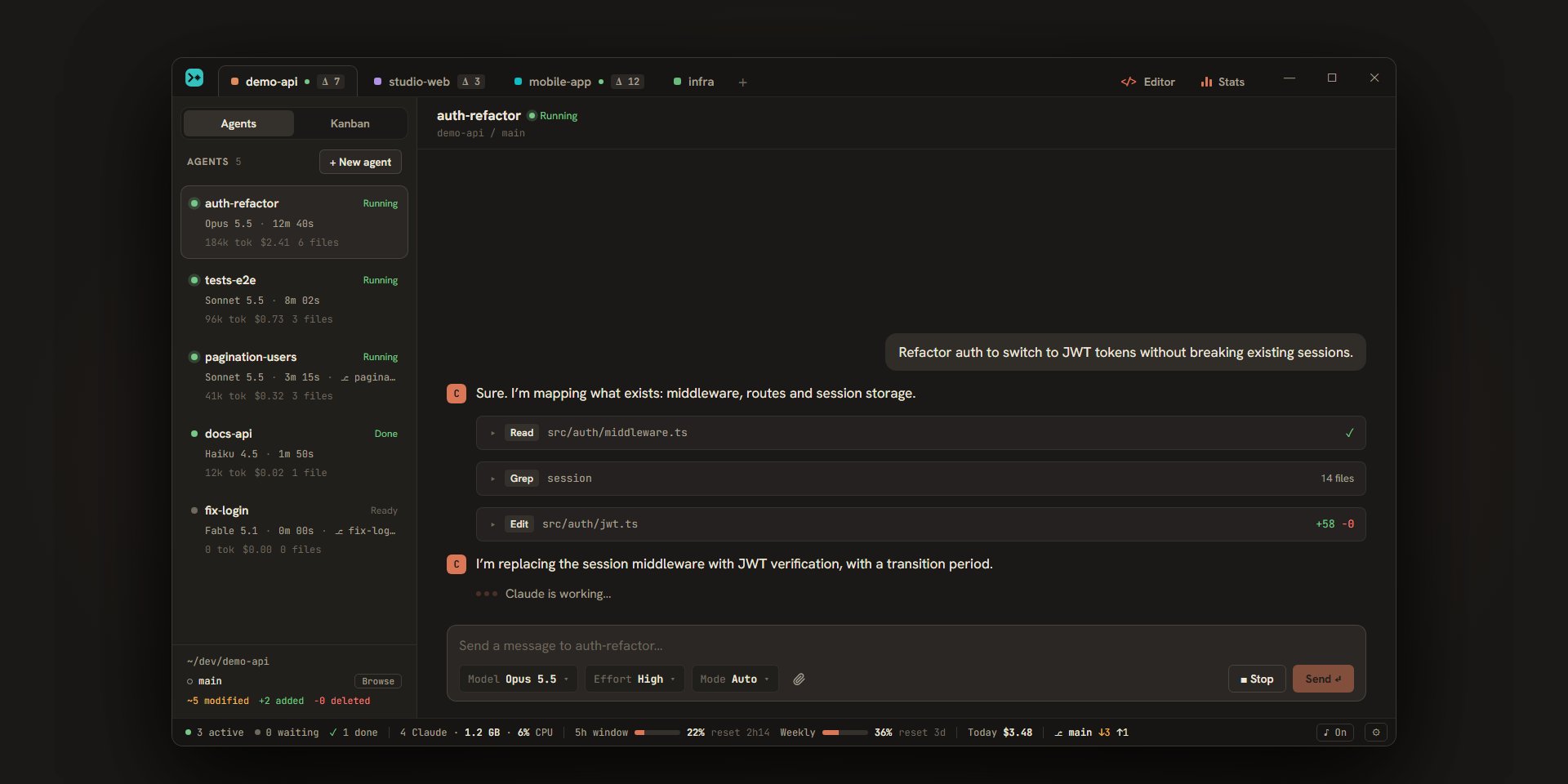
The window has five zones:
- the title bar, at the top: the project tabs and a few buttons;
- the sidebar, on the left: the agents of the project on screen, the project’s launch commands and its terminals;
- the main area, in the middle: the conversation of the chosen agent, or another view of the project (Kanban, editor, terminal, log of a launch command);
- the side panel, on the right, when it is open: the uncommitted files and the git history;
- the status bar, at the bottom: the active agents, the quotas, today’s cost and the branch.
The window opens at 1440 × 900 and never goes below 1000 × 600. Escouade remembers its size and position from one launch to the next.
Short messages (a confirmation, an error) appear at the bottom right, above the status bar, and go away by themselves: after 3.5 seconds, 7 seconds for an error, 12 for a message that carries a button.
Closing the window does not quit Escouade and does not stop the agents: the window goes away to the notification area (the menu bar on macOS). A click on the icon, “Show” in its menu, or starting Escouade a second time brings it back. “Quit” in the icon’s menu stops the application; if files in the editor are not saved, the window comes back first and asks “Quit Escouade?” (“Quit anyway” button). The icon’s tooltip says how many agents are waiting for an answer.
The title bar and the project tabs
From left to right: the logo, the “Overview” button, one tab per project followed by the + button (“Add a project”), then “Editor” (when a project is on screen) and “Stats”. On Windows and Linux, Escouade draws the window buttons itself (“Minimize”, “Maximize” or “Restore”, “Close”). The empty parts of the bar move the window.
A project tab
A tab shows a square in the project’s color, its name, then signs that only appear when they apply:
| Sign | What it means |
|---|---|
| Green dot | An agent of the project is working and none is waiting for your answer. |
| “Δ 7” | The number of uncommitted git changes in the project (tooltip “Uncommitted git changes”). |
| Amber pill with a number | That many agents of the project are waiting for your answer (tooltip “Agents waiting for an answer”). |
| Blinking tab | An agent of the project asked a question, finished or failed while you were looking elsewhere. The tooltip lists the agents (“Needs a look: …”). The blink is red for an error, amber for a question, green for a finish, the most pressing one winning. It stops when you display the agent, with the window in front. |
A tab’s tooltip also gives the path of the project’s folder.
- A click shows the project.
Ctrl+1toCtrl+9show project n. - Drag a tab to change the order of the projects; the order is kept.
- A right click, or a middle click, opens the project’s menu:
| Entry | What it does |
|---|---|
| “Rename…” | Opens the “Rename the project” window. |
| “Color” | A row of swatches: the project’s color, which tints the interface while it is on screen. |
| “Turn on a worktree per agent” or “Turn off a worktree per agent” | Switches the option for the project’s new agents. See worktrees. |
| “Project settings…” | Opens the settings, Projects tab, on this project. |
| “Open the folder” | Opens the project’s folder in the system’s file manager. |
| “Close the project…” | Removes the project and its agents from the application, conversations included, after a confirmation. The files and the worktrees on disk are not touched. |
The bar’s buttons
- “Overview” (
Ctrl+Shift+A) shows the agents of all projects on one page; the same button, or the same shortcut, closes it. See keeping track of agents. - “Editor” opens the editor on the project’s folder (“Browse and edit the project’s files”). See the editor.
- “Stats” shows the usage statistics. See statistics.
The sidebar
Agents and Kanban
At the top, a two-button switch: “Agents” shows an agent’s conversation, “Kanban” the project’s board of tickets. When tickets are waiting for your test, a badge on “Kanban” gives their number (“N to review”). See the Kanban.
The list of agents
The “Agents” header carries the number of agents in the project and the “+ New agent” button (Ctrl+N). The ▾ arrow to its right opens “New agent on a branch…”. With no agent, the list says “No agents.” with a “Create an agent” button.
Each agent is a card:
- its name (double-click to rename it in place:
Enterconfirms,Esccancels), a waves icon when remote control is on (blue once connected), and its status; - what the agent says it is doing, when it said so through the MCP server;
- its model, the time it has worked and, if it has a worktree, its branch (
⎇ …); - its tokens, its cost (preceded by “≈” while a turn is running: it is then an estimate) and the number of its changed files (“N files”);
- a “Plan 2/7” mini bar when the agent follows a plan (see plan progress);
- for a ticket’s agent, a tag
▸ DEM-3 · loop 1/5, or▸ DEM-3 · to review.
A click on a card shows the agent. Ctrl+Tab and Ctrl+Shift+Tab go to the project’s next or previous agent, skipping archived ones.
The statuses and their colors
| Status | Dot | Text |
|---|---|---|
| “Ready” | Gray | Gray |
| “Running” | Green, with a pulsing halo | Green |
| “Question” | Amber, pulsing | Amber “Question” pill |
| “Done” | Green check mark | Green |
| “Error” | Red | Red |
In place of the status, the card can say “Setting up…” (the agent’s worktree is being prepared) or “Resumes” followed by a time (the agent, stopped by the usage limit, then resumes by itself), in amber.
A card whose agent asked a question, finished or failed while it was not on screen blinks, in amber, green or red, until you open it. Ctrl+J goes to the next agent that is waiting for your answer or needs a look.
An agent’s menu
A right click on a card opens its menu:
| Entry | What it does |
|---|---|
| “Rename” | Renames the agent. |
| “Duplicate the conversation” | Creates a copy of the agent that carries all its context into a new session, without touching the original. Grayed out during a turn (“Wait for its turn to end.”). |
| “Archive” or “Restore” | Puts the agent in the “Archived (N)” list, keeping its conversation, or takes it out again. If its ticket is in progress or to review, a confirmation warns that it goes back to “To do”. |
| “Prepare launch” | For an agent in a worktree, with no ticket under way: asks it how to launch its worktree, on its own ports. |
| “Integrate …” | For an agent in a worktree: brings the project’s base branch into its own. |
| “Open in editor” | Opens the editor on its worktree, otherwise on the project’s folder. |
| “Open a terminal” | Opens a terminal in its worktree, otherwise in the project’s folder. |
| “Turn on remote control” or “Turn off remote control” | Makes the session reachable from claude.ai and the Claude app (“claude.ai, mobile”). When the link is available, “Open on claude.ai” and “Copy the claude.ai link” appear. Absent in the Claude Code view, where Claude Code’s own /remote-control command does it. |
| “Delete…” | Stops the Claude process and removes the conversation from the application; the Claude Code session stays on disk. For an agent with a worktree, a checkbox offers to delete the worktree too, and its branch if it was created for the agent. |
Archived agents are under “Archived (N)”, a title you unfold with a click; their card only shows the name and the cost.
Launch
The “Launch” section lists the project’s launch commands (development server, watchers…) with their state. ▶ runs a command, ⟳ restarts it, ■ stops it; “Run all” and “Stop all” act on all of them. A click on a command shows its log in the main area. The gear opens “Launch commands…”; with no command, “Configure” opens their settings and “✦ Suggest commands” lets Claude suggest some. See running the project.
Terminals
The “Terminals” section lists the project’s open terminals. The + button (“New terminal”) offers the shells detected on the machine, and Ctrl+T opens one right away. A click on a terminal shows it in the main area, the × closes it, and a terminal whose shell stopped is marked “exited”. See terminals.
The foot of the sidebar
The foot recalls the project’s folder, its git branch and the count of its changed files: ~N modified, +N added, −N deleted (or “No git repository”). The “Browse” button opens the editor on the project’s folder.
The header and the conversation
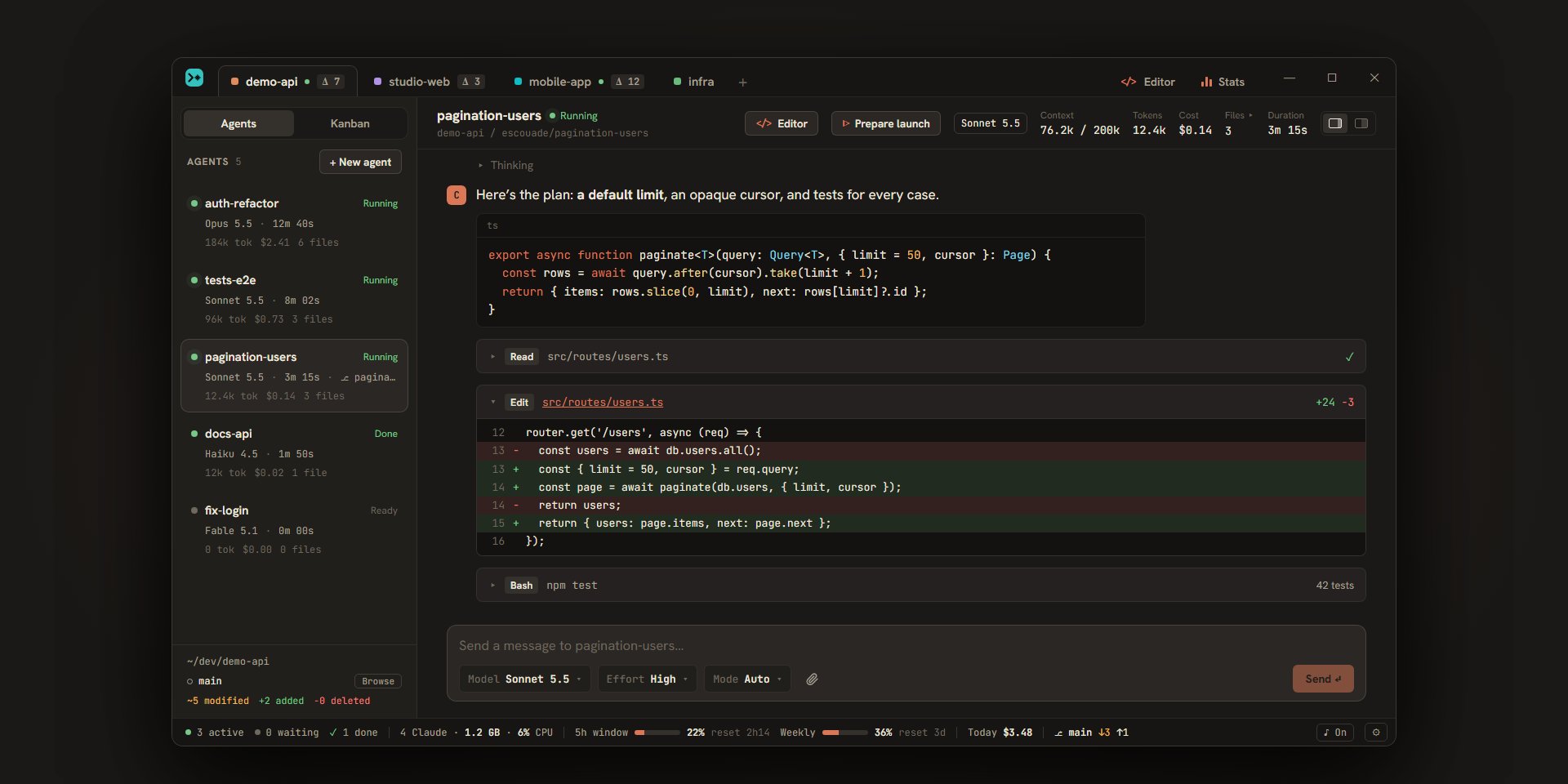
The header of an agent’s conversation shows, from left to right:
| Element | What it shows or does |
|---|---|
| Name and status | The agent’s name (double-click to rename it) and its status. |
project / branch |
The project, and the agent’s branch if it has a worktree, otherwise the branch of the project’s folder. |
| “Editor” | Opens the editor on the agent’s files. |
| “▶ Test” or “Prepare launch” | For an agent in a worktree: launch its work to try it, or ask the agent how to launch it. See review and approve. |
| “Claude Code view” or “Escouade view” | Runs the agent in Claude Code’s own interface, or brings it back to Escouade’s conversation. Absent for a ticket’s agent. See the Claude Code view. |
| The model | The agent’s model, with its version. |
| “Context” | The context’s tokens out of the size of the model’s window (“76.2k / 200k”). The figure turns amber from 80%, when the context is nearly full. |
| “Tokens”, “Cost”, “Duration” | What the agent has used and the time it has worked. |
| “Files” | The number of the agent’s uncommitted files. |
| Two buttons | The choice of layout (see below). |
Under the header, the conversation shows your messages, Claude’s replies in markdown, its foldable reasoning, its tool calls as compact rows you can unfold, the cards for questions and permissions, and a line or a card at the end of each turn. When the agent follows a plan, a “Plan” banner sits between the header and the messages: see plan progress. A long conversation only shows its latest 80 items: “Show the previous N messages” adds more. If new messages arrive while you read higher up, the “↓ New messages” button takes you back down. Ctrl+K searches the conversations.
The message field is at the bottom: its “Model”, “Effort” and “Mode” menus, the paperclip, “Send”, and “■ Stop” during a turn. An archived agent shows “Agent archived.” instead, with a “Restore” button. An agent in error says so (“The agent stopped.”): a new message restarts Claude on the same session. See the conversation and agents.
The side panel
The side panel has two tabs: “Uncommitted”, followed by the number of files, and “History”.
Uncommitted
- The “This agent” and “Whole project” selector chooses the scope of the list. Under it, a line says where the files come from: the agent’s worktree (“isolated from the other agents”), its edits, or all the project’s agents.
- Each row is a file: its letter (M, A or D), its name, its folder, its added and removed lines, and for “Whole project” the agent’s name. The
</>button of a row opens the file in the editor. A right click offers “Open in editor” then, according to the file’s letter, “Discard changes…” (M) or “Delete the file…” (A), always after a confirmation, or “Restore the file” (D). - At the bottom: “Show diff”, “Commit…” (“Commit all…” for “Whole project”) and, for an agent in a worktree, “Merge … → …” and “Integrate …”.
The list only shows 500 files; the diff and the commit take all of them. See Git and commits.
History
The “History” tab shows the git graph of the whole repository, with the agent’s branch highlighted. A click on a commit opens its diff; a right click offers actions on branches. See branches.
The two layouts
You choose with the two buttons to the right of the header, “Classic layout” and “Conversation and files side by side”, or with Ctrl+Shift+L. Escouade keeps your choice from one launch to the next.
| Item | Classic | Side by side |
|---|---|---|
| Side panel | Optional, 330 px wide: “Files ▸” in the header or Ctrl+Shift+B opens it, the × closes it. |
Always displayed, on the right half of the main area. Ctrl+Shift+B does nothing. |
| Click on a file | The diff opens in a large window. | The diff shows under the list, in the panel. |
| “Files” in the header | A button that opens the panel. | A plain number. |
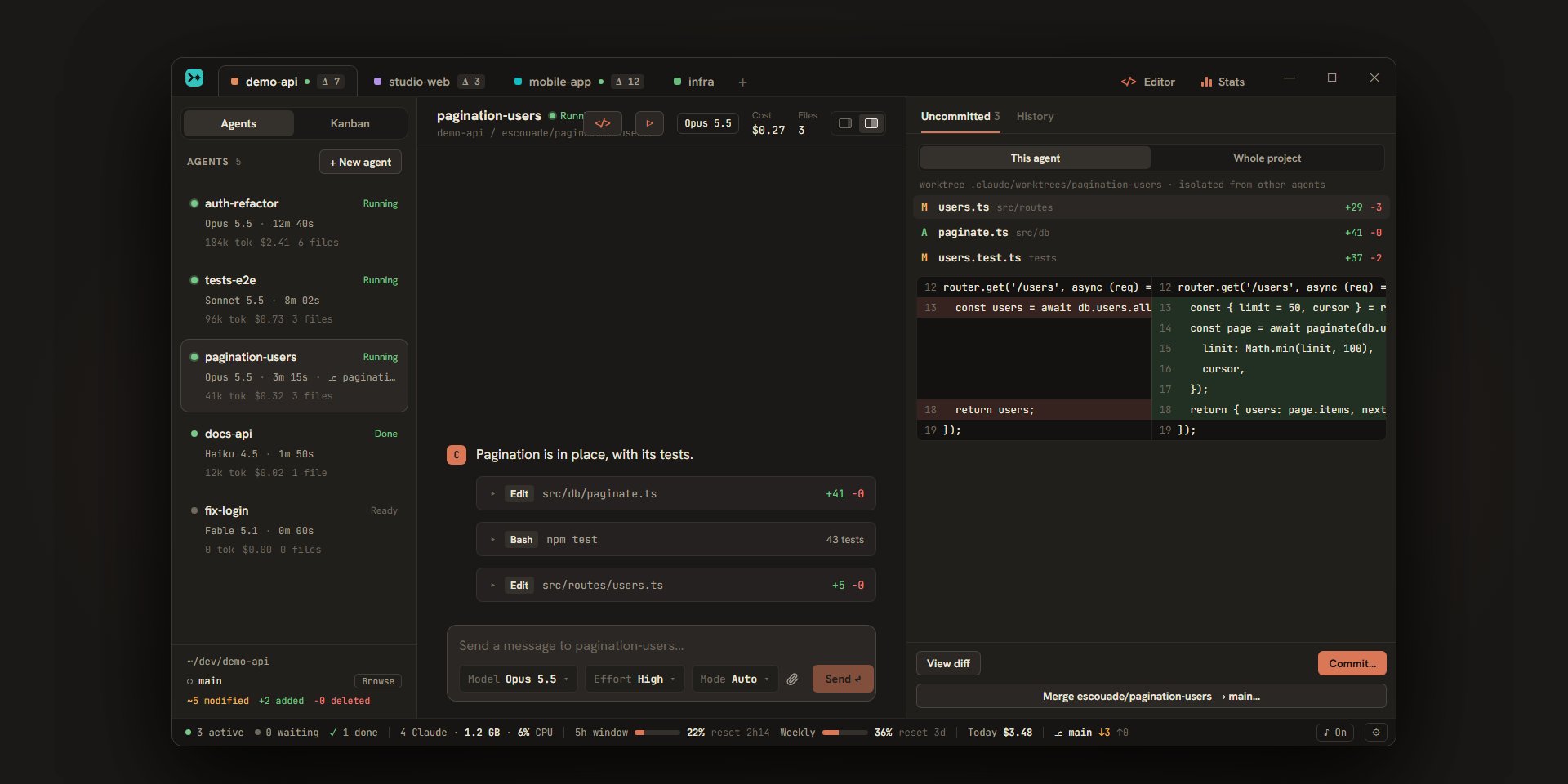
When the conversation is narrow, which happens in the side-by-side layout, the header first drops “Tokens” and “Duration” as well as the text of its buttons, then “Cost” and “Files”. The cards of the sidebar show the same figures.
The status bar
From left to right:
| Element | What it shows |
|---|---|
● N active |
The number of “Running” agents. |
● N waiting |
The number of “Question” agents, in amber when there are some. A click goes to the next agent that is waiting or needs a look (Ctrl+J). |
✓ N done |
The number of “Done” agents. |
N Claude · memory · CPU |
The running Claude processes, with the tools and MCP servers they start; the tooltip details it agent by agent. |
5h … reset 3h01 and W … reset 4d 12h |
The current account’s quotas, the 5-hour window and the 7-day one: a bar (which turns amber above 80%) and the time before the reset. The percentage is in the tooltip. With several accounts, the current account’s name comes before the bars and a click opens the “Claude accounts quota” panel. |
Today $3.48 |
What your agents cost today, preceded by “≈” while a turn is running. |
⎇ main ↑1 ↓3 |
The branch of the project on screen, with the commits to push (↑) and to pull (↓). A click opens the branch picker. “not published” or “remote deleted” replaces the arrows when the branch has no tracking. |
| Update | “Update X ready · Restart” when an update is downloaded: a click opens the update window. While it downloads, the bar says “Update X…”; when an automatic restart is planned, “Restarting in N s” and a “Later” button take its place. See updates. |
♪ On or ♪ Off |
Turns the notification sound on or off. |
⚙ |
Opens the settings (Ctrl+,). |
See quotas and cost and branches.
The settings
Ctrl+, or the ⚙ button of the status bar opens the settings window: the tabs on the left, the content on the right. A modified tab is marked; “Save” saves all the tabs at once, and “Cancel” (or Esc) closes the window without saving. The “Claude accounts” tab is the exception: it saves at each change. The “Projects”, “Kanban” and “Integrations” tabs set one project at a time, chosen at the top; “Project settings…” in a project tab’s menu opens the window on that project.
| Tab | Page |
|---|---|
| “Application” | Application settings |
| “Claude Code” | Claude Code settings |
| “Claude accounts” | Claude accounts settings |
| “Notifications” | Notifications settings |
| “Projects” | Projects settings |
| “Kanban” | Kanban settings |
| “Integrations” | Integrations settings |
| “Terminals” | Terminals settings |
| “Network” | Network settings |
| “About” | “About” settings |
On macOS
- Native title bar. macOS draws the window buttons itself (red, yellow, green) at the left of the title bar, before the tabs; Escouade doesn’t show its own. The red button puts the window away in the menu bar, as on Windows and Linux, and
⌘Qor “Quit Escouade” stops the application. ⌘instead ofCtrl. Every shortcut of this page uses⌘(⌘N,⌘,,⌘K,⇧⌘L…), exceptCtrl+TabandCtrl+Shift+Tab, because⌘Tabswitches applications. In terminals,⌘Cand⌘Vcopy and paste, and theCtrlkeys go to the shell.- Menu bar. Escouade has its macOS menus: its own (“About Escouade”, “Hide Escouade”, “Quit Escouade”…), “Edit”, “View”, “Window” and “Help”, in the interface language.
- Notifications. The Dock icon bounces when an agent needs you, where the taskbar flashes on Windows. See notifications.