Code and Git
The built-in editor
The built-in editor lets you browse and edit the files of a project or of an agent’s worktree without leaving Escouade, with syntax highlighting, search, code navigation and change tracking.
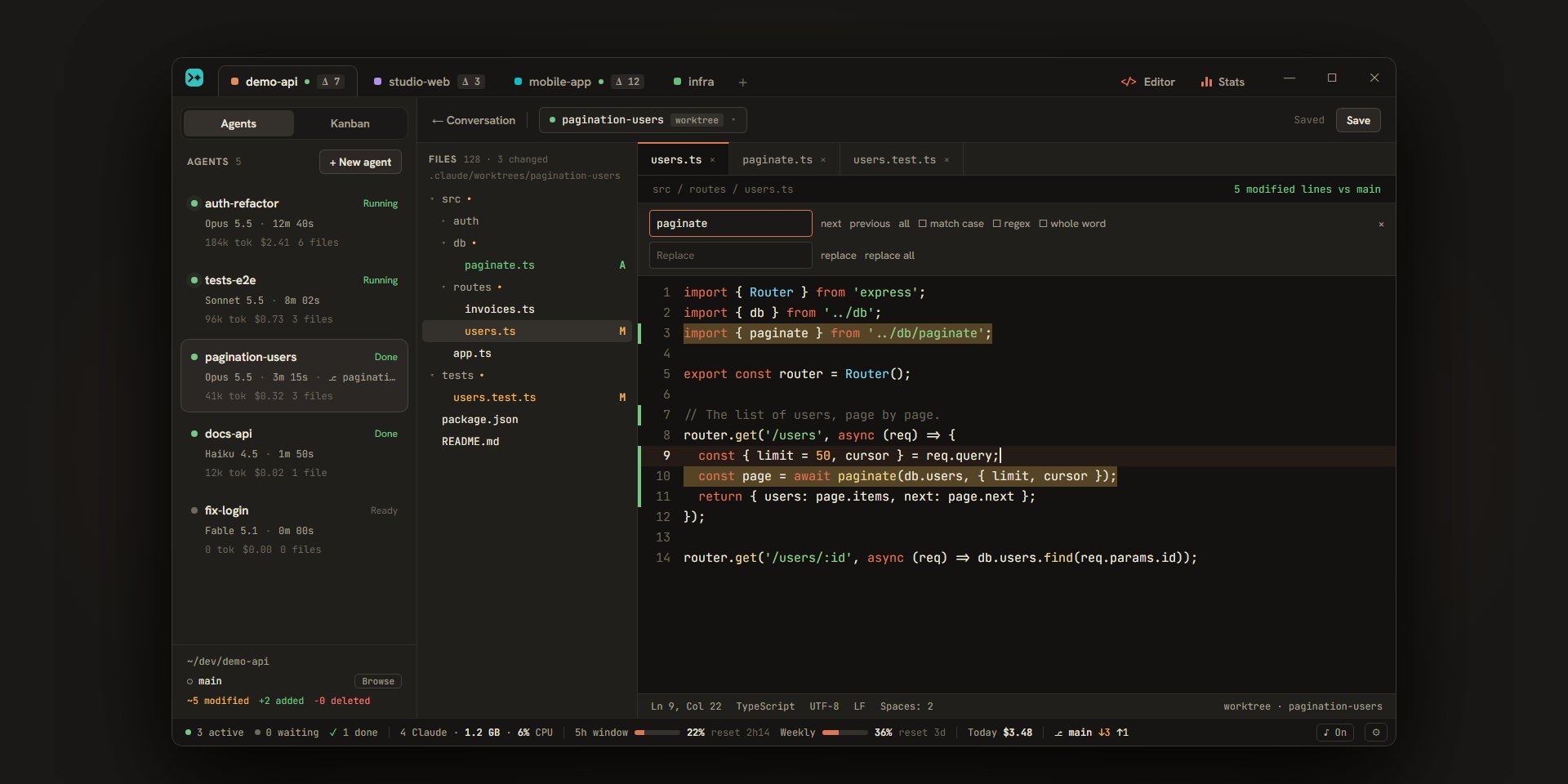
Opening the editor
The editor takes the place of the conversation in the main area. The “← Conversation” button at the top left goes back. Open tabs and unfolded folders are kept, project by project, as long as Escouade runs: when you return to the editor, you find what you left there.
| To open… | Do this |
|---|---|
| The editor of the displayed agent | The “Editor” button in the conversation’s header (“Browse and edit the files of this agent”), or “Open in editor” in the menu of the agent’s card. It opens on its worktree, or on the project if it has none. |
| The project’s editor | The “Editor” button at the top right of the title bar, or “Browse” at the foot of the sidebar. |
| A changed file | The </> button on a row of the uncommitted files panel, or “Open in editor” in its menu. |
| A file the agent edited | The file name on a tool call row (Edit, Write…) in the conversation: the editor opens at the first line that edit changed. The list of changed files that wraps up the end of a turn does the same, without a specific line. |
| A file you know by name | Ctrl+P, see below. |
On macOS, Ctrl becomes ⌘ in this page’s shortcuts, except for going back and forward (see below). A file that is outside the project folder, or the agent’s, doesn’t open: a message says so. When a source opens with no tab at all, the editor shows its first changed file, or else its README.md.
The source: the project or an agent’s worktree
The button at the top left of the editor, next to “← Conversation”, says what you are browsing: “⎇ main” with the “branch” tag for the project folder, or an agent’s name with the “worktree” tag. It opens a “Browse” menu:
- the project, with its branch and its path, and the number of its changed files (“Δ 3”) or “clean”;
- each agent that has a worktree, with its status dot, its path, its model and the number of its changes (“4 changes”) or “clean”.
Each source has its own tabs, its own unfolded folders and its own file tree. Files are read and written directly on disk: what you save in an agent’s worktree is what it will see when it reads that file. The bar under the text recalls the source (“worktree · refacto-auth” or “branch · main”).
The file tree
The left column shows the source’s files: those git lists, tracked or new and not ignored. Folders like node_modules, which git ignores, aren’t there, and neither are the agents’ worktrees when they are stored inside the project folder. It goes up to 50,000 files; beyond that, the header says “list truncated”.
- The header gives the source’s path and a summary (“128 files · 3 changes”). The buttons on the “Files” row create a file or a folder (“New file”, “New folder”) in the folder of the row you last clicked (otherwise the displayed file’s folder, or the root), “Refresh” reads the tree again and “Collapse all” folds the folders. It also updates by itself shortly after each change in the folder, for example when the agent writes a file.
- A modified, added or deleted file takes the color of its state and its letter (
M,A,D); a folder that contains one carries a dot of the same color. The tabs take the file’s color. - The files that git ignores but that the project copies into its worktrees (
.env*by default) are in the tree, greyed out, with the tooltip “Ignored by git”: see worktrees. - The handle between the column and the text sets the column’s width, with the keyboard as well as the mouse; a double-click puts it back to its original width. The width applies to all projects.
- The keyboard follows the rules of trees:
↑and↓,HomeandEndmove,→unfolds a folder or goes into it,←folds it or goes up to the parent folder,Enteropens a file,F2renames andDeldeletes (⌘⌫on macOS).
The file tree’s menu
Right-clicking a row, or the free space under the rows, opens a menu:
| Entry | What it does |
|---|---|
| “New file…” | Opens a name field in the row’s folder (the root on the free space). A name like src/lib/a.ts also creates the missing folders. |
| “New folder…” | The same for a folder. Git doesn’t list an empty folder: the tree shows it all the same. |
| “Open a terminal here” | Opens a terminal in that folder of the source. |
“Rename…” (F2) |
Replaces the row with a field. A name like other/a.ts moves the file. Open tabs follow. |
“Delete” (Del, ⌘⌫ on macOS) |
Sends the file or folder to the trash after confirmation (“It goes to the trash.”; for a folder, “The folder and its 12 files go to the trash.”). |
| “Copy path” and “Copy relative path” | Copy the full path, or the path from the source’s root. |
The name field refuses what can’t exist and says so under the row: a name that starts with a slash, an invalid name, a name already taken (“a.ts” already exists here.) or a folder you try to put inside itself. If the file you create is ignored by git, a message says so (“.env.local is ignored by git: the file tree doesn’t show it.”).
Deleting a folder or a file whose files are open with unsaved changes first asks, for each one, whether to save it. Renaming loses nothing: the open tabs, changes included, follow the new name.
Tabs and saving
Clicking a file opens it in a tab. A tab’s × button closes it, as does a middle click; a dot replaces the cross when the file has unsaved changes. Two tabs with the same name carry the name of their folder to tell them apart.
- At the top right, “● Unsaved · Ctrl+S” or “Saved” says where the displayed file stands, and the “Save” button saves it.
Ctrl+Sdoes the same. - Saving keeps the file’s line endings (LF or CRLF) and its BOM, and the write is atomic: a file is never written halfway. A read-only file is refused.
- Closing a tab that has changes asks “Save “a.ts”?” with “Save”, “Don’t save” and “Cancel”; closing Escouade’s window with unsaved files asks “Quit Escouade?” (“Quit anyway”).
- A binary file isn’t displayed (“Binary file: no preview.”), nor is a file larger than 2 MB (“File too large for the editor (2.4 MB).”).
- The bar under the text gives the cursor’s line and column (“Ln 9, Col 22”), the language, the encoding (UTF-8), the line endings and the file’s indentation (“Spaces: 2” or “Tabs”), which the editor works out from the file.
The text
Syntax highlighting follows the file’s extension. A file of another type is shown as “Plain text”.
| Language | Extensions |
|---|---|
| TypeScript, JavaScript | .ts, .mts, .cts, .tsx, .js, .mjs, .cjs, .jsx |
| Web | .html, .css, .scss, .svelte, .vue |
| Data and configuration | .json, .yaml, .yml, .toml, .xml, .svg, .sql |
| Documents | .md |
| Compiled languages | .rs, .go, .java, .c, .h, .cpp, .hpp, .cc, .cs, .kt, .swift |
| Scripts | .py, .rb, .php, .sh, .bash, .ps1, Dockerfile |
.prisma and .tf files are recognized, but without highlighting.
The editor has what you expect from a code editor: line numbers, the current line marked, brackets matched and closed automatically, indentation that follows what you type, Tab to indent and Ctrl+Z to undo.
Alt+click(⌥+clickon macOS) adds a cursor.Ctrl+Fopens the search bar for the file, at the top of the text: “next”, “previous”, “all”, and the options “match case”, “by word” and “regexp”, with the “Replace” field, “replace” and “replace all”.Esccloses it.
Changed lines
In the margin, next to the line numbers, a colored bar marks the lines changed since the file’s reference version, and a mark shows where lines have disappeared. The reference version is the one from the last commit. For an agent’s worktree, it is the one where its branch left its base branch: the agent’s commits then count as changes.
Above the text, the file’s path is followed by a summary: “5 lines changed vs main”, “New file · not in main” or “Same as main”. In the project folder, the reference is written “HEAD”.
The “Show changes” button (visible when the file has a reference version) displays those changes in the text: above each changed block, the lines of the reference version, with a “Revert this block” button that puts them back in the text. That changes the text without saving it: Ctrl+Z undoes it, and nothing is written until you save. A second click on the button closes the comparison.
When a file changes on disk
As long as the editor is open, it reads the open files again at each change in the folder, for example when the agent works.
- A file you haven’t modified takes the new version by itself, without moving the cursor.
- A file you have modified doesn’t change under your fingers: a banner appears, “This file changed on disk.”, with three buttons.
| Button | Effect |
|---|---|
| “Reload” | Drops your changes and takes the version on disk. |
| “Compare” | Shows in the text what the disk has that’s different: above each block, the disk’s lines, with “Take this block”. The banner says “Comparing with the version on disk.” |
| “Keep my version” | Saves your version over the one on disk. |
If the file changes again while you compare it, the banner says so (“The file changed on disk again: the comparison shows its new version.”) and “Keep my version” waits for a second: a click aimed at the previous version doesn’t overwrite the new one. A save is refused as long as the file has changed on disk since you read it: you never overwrite the agent’s work without having seen it.
If the file is deleted, the banner says “This file was deleted.”, with “Close” and “Save to recreate it”.
Going to a definition
With Ctrl held down (⌘ on macOS), what leads elsewhere is underlined under the mouse, with a hand, and a click follows it. F12 follows what is under the text cursor. There is no language server: Escouade uses the source’s file tree, the file’s syntax and a search in the files.
| Under the cursor | Where it leads |
|---|---|
A script import (from '…', import '…', import('…'), require('…')) in a JavaScript, TypeScript, Svelte or Vue file |
The imported file. Extensions, index folders and the TypeScript source of a .js are found, and the aliases of tsconfig.json or jsconfig.json (paths, baseUrl) and SvelteKit’s $lib are followed. A package (node_modules) leads nowhere. |
@import, @use, @forward or url(…) in a style sheet, an HTML, Svelte or Vue file |
The file (Sass partials _x.scss are found). |
mod x; in a Rust file |
x.rs or x/mod.rs. |
from a.b import c or import a.b in a Python file |
The module’s file, relative imports included. |
A relative link, src or href in a Markdown or HTML file |
The file. |
A path written anywhere that exists in the source (src/app.ts, ./a.ts), optionally followed by :42 or :42:7 |
The file, at that line and column. |
| A name (variable, function, class, type…) | Its definition: in the file, by its syntax, nearest to the cursor; in the file it is imported from; otherwise in the files of the same language, where a search finds what declares it. Nothing in a comment, a string or a keyword, nor in a Markdown or text file. |
A single destination opens right away. If there are several, a “Definitions of “name”” list opens under the word: ↑ and ↓ choose, Enter opens, Esc closes. With no result, a message says “No definition found for “name”.”; if the target file isn’t in the source, “File not found: …”.
Shift+F12 on a name looks for where it is used: the search in files opens on that name, whole word, case-sensitive. The text is searched as is, comments included.
Going back
Each jump (a click, F12, a search result, a file opened with Ctrl+P) remembers where you left from. Alt+← goes back there and Alt+→ goes forward again, as in a browser; the mouse’s “back” and “forward” buttons do the same. On macOS, they are ⌃- and ⌃⇧-, with the Control key and not ⌘. The history keeps 50 places per project and per source.
Opening a file by name
Ctrl+P opens the “Open a file” palette from anywhere in a project, editor open or not. It searches the editor’s source if it is open, otherwise the displayed agent’s worktree, otherwise the project; the source’s name is at the right of the field.
- The field says “File name, or name:42 for a line”. Type part of the name, or just a few letters in order: the start of the name counts most, then a piece of the name, then the path.
name:42opens the file at line 42, andname:42:7at line 42, column 7, like the errors in a stack trace (src/app.ts:42:7).- With an empty field, the list first shows the files opened last in that source (30 at most), without the one that is displayed:
Entertherefore goes back to the previous file. - The palette shows 50 results at most (“The first 50 results: narrow down your search.”). A file ignored by git carries the “ignored by git” tag.
↑and↓choose,Enteropens,Esccloses.
Searching in files
Ctrl+Shift+F opens the search through all the source’s files, in the left column; the magnifier above the file tree does the same, and the button next to it goes back to the files. If a single line of text is selected in the code, that is what gets searched. Ctrl+F remains the search in the displayed file.
- The “Search” field starts the search 250 ms after the last keystroke;
Enterstarts it at once. Three buttons set the search: “Match case” (Aa), “Whole word” (ab) and “Regular expression” (.*). An invalid expression is flagged (“Invalid regular expression.”). - Escouade searches with
git grepin the files git lists (tracked, or new and not ignored), without binary files, and without the agents’ worktrees when searching the project. The summary says “12 results in 3 files”. - Results are grouped by file, with the number of lines found, and the matching part is highlighted. Clicking a line opens the file at that line and column.
↑and↓,HomeandEndgo through the list,→and←unfold and fold a file. - Results stop at the first 2,000 lines (“Results limited to the first 2,000.”) or after 10 seconds (“Search stopped after 10 s: partial results.”).
- The search is kept when you close the editor, per project; when you change source, it starts again on the new one.